> ## Documentation Index
> Fetch the complete documentation index at: https://fillout-005a867b-dependabot-npm-and-yarn-socket-io-parser-4.mintlify.site/llms.txt
> Use this file to discover all available pages before exploring further.
# Form Workflows
> Turn forms into powerful automations. Reclaim your team's time with Fillout's built-in form and scheduling workflows.
export const SupportBanner = () => {
const titleId = React.useId();
return ;
};
## How to create a workflow
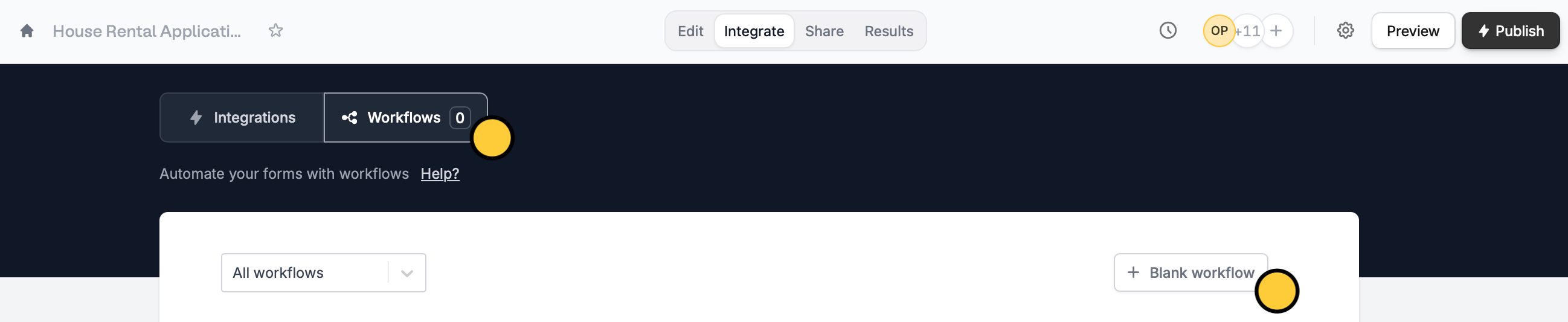
**Open an existing form first or create a new one**, then navigate to the `Integrate` tab from the top menu followed by `Workflows` to create a `+ Blank workflow`.
 Select a **trigger**.
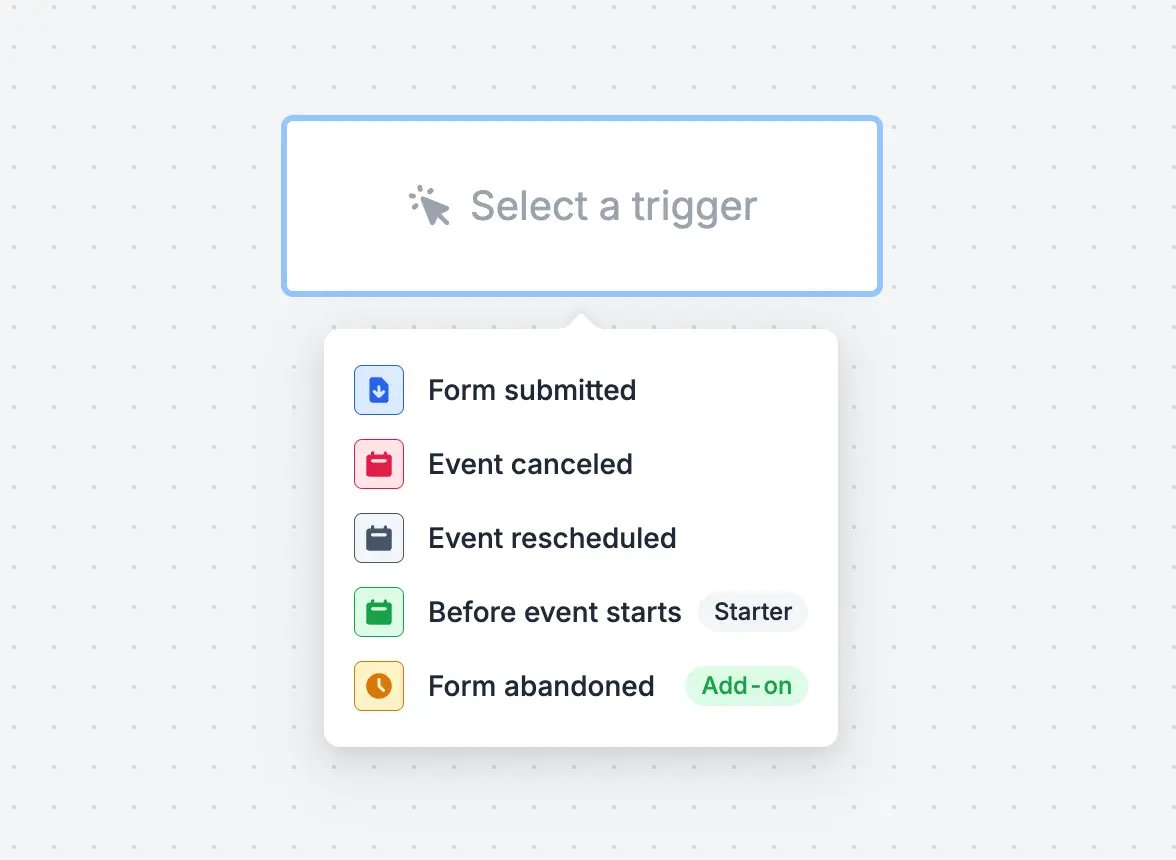 **Workflow triggers**
A trigger refers to a condition that starts a specific action or series of actions. Examples are:
Select an **action** and `Edit` it according to your preferences. To add more actions, click .
**Workflow triggers**
A trigger refers to a condition that starts a specific action or series of actions. Examples are:
Select an **action** and `Edit` it according to your preferences. To add more actions, click .
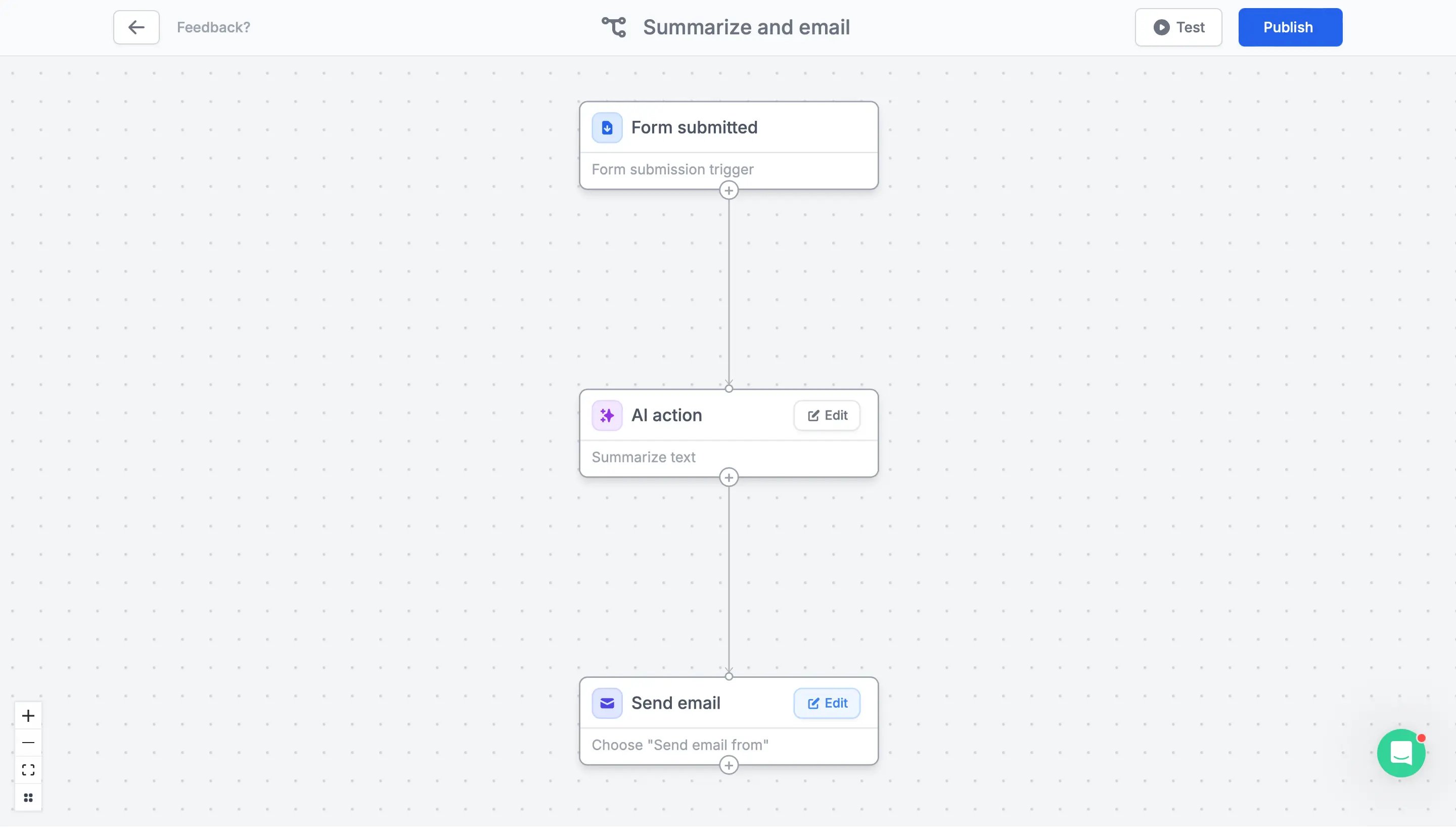 **Workflow actions**
Actions are the tasks or steps that are automatically carried out after a trigger occurs. Examples are:
`Test` your workflow first to ensure everything's running. Then, `Publish` and `Share` it.
Unverified accounts are limited to 5 workflows per form, while verified accounts can make up to 20 workflows per form (including reminder emails). To increase your limit, submit an [organization verification request](https://main.fillout.com/verify-your-fillout-account).
## Edit an existing workflow
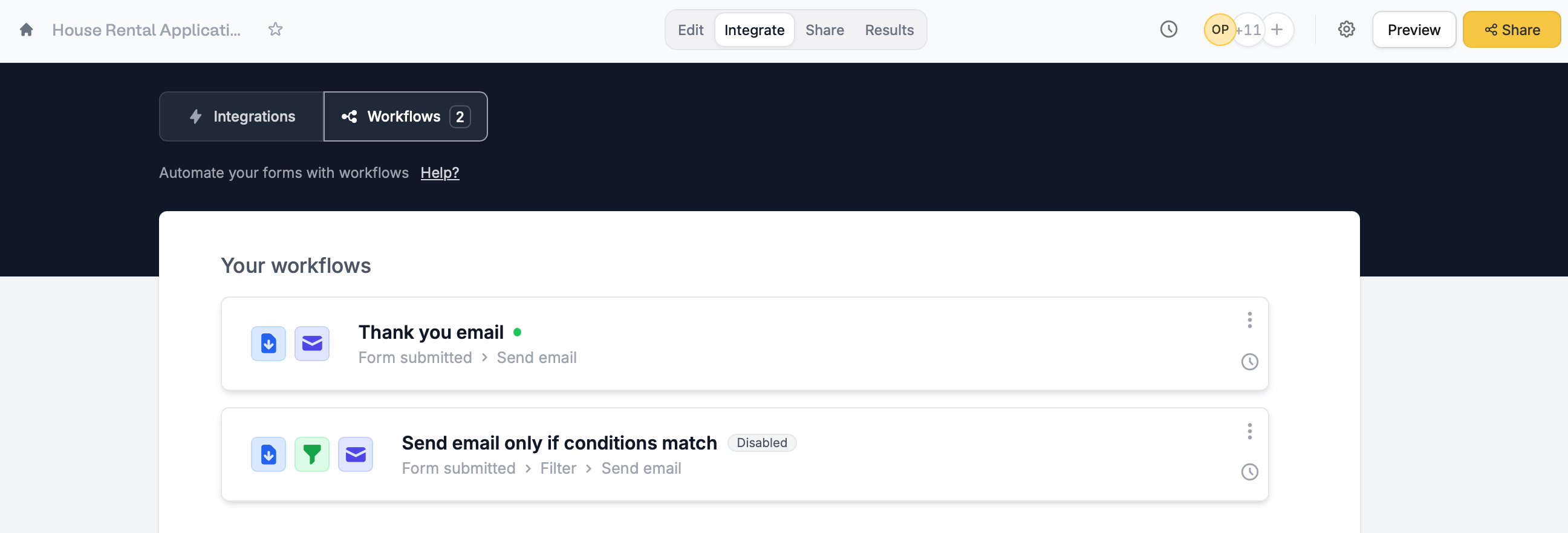
Click `Integrate` from the top menu of your form, and click `Workflows`. Simply select a workflow to edit it.
**Workflow actions**
Actions are the tasks or steps that are automatically carried out after a trigger occurs. Examples are:
`Test` your workflow first to ensure everything's running. Then, `Publish` and `Share` it.
Unverified accounts are limited to 5 workflows per form, while verified accounts can make up to 20 workflows per form (including reminder emails). To increase your limit, submit an [organization verification request](https://main.fillout.com/verify-your-fillout-account).
## Edit an existing workflow
Click `Integrate` from the top menu of your form, and click `Workflows`. Simply select a workflow to edit it.
 ## Test workflows with prior submissions
Test your workflows without waiting for triggers or creating demo submissions.
## 1-click automations with templates
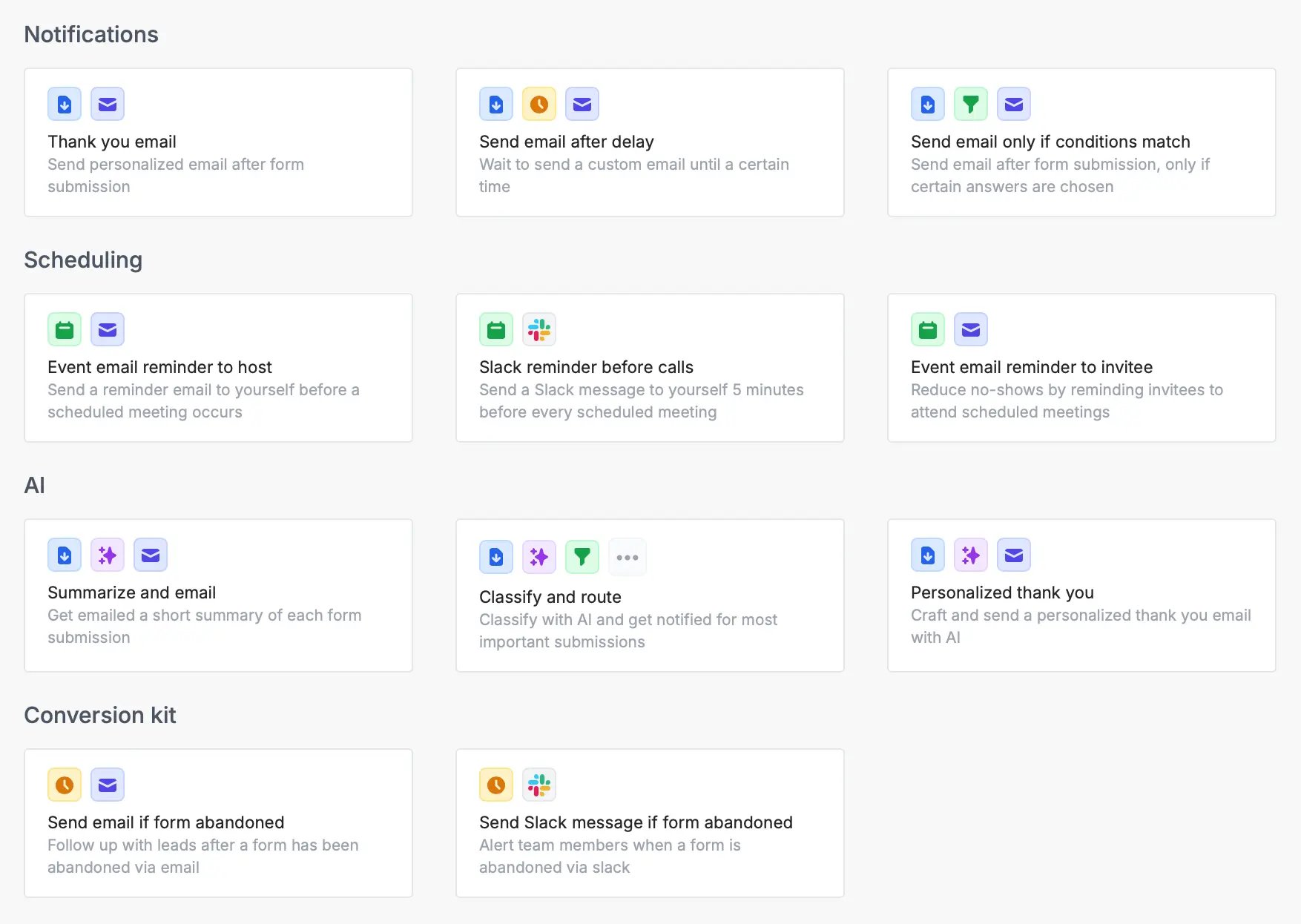
The fastest way to get started with workflows is from a [template](https://build.fillout.com/home/workflows). These are common use cases for Fillout Workflows.
## Test workflows with prior submissions
Test your workflows without waiting for triggers or creating demo submissions.
## 1-click automations with templates
The fastest way to get started with workflows is from a [template](https://build.fillout.com/home/workflows). These are common use cases for Fillout Workflows.
 ## Monitor workflows in one place
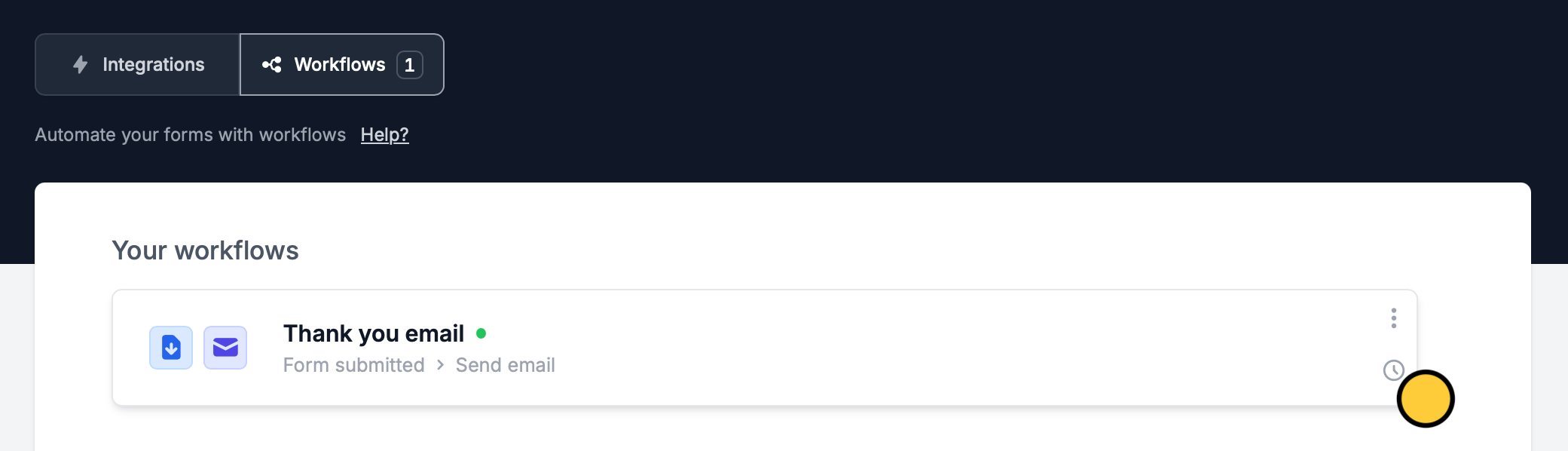
Easily track email notifications and other workflows, with full visibility of what happened when. To view workflow runs, open your form and go to `Integrate` from the top menu. Click .
## Monitor workflows in one place
Easily track email notifications and other workflows, with full visibility of what happened when. To view workflow runs, open your form and go to `Integrate` from the top menu. Click .
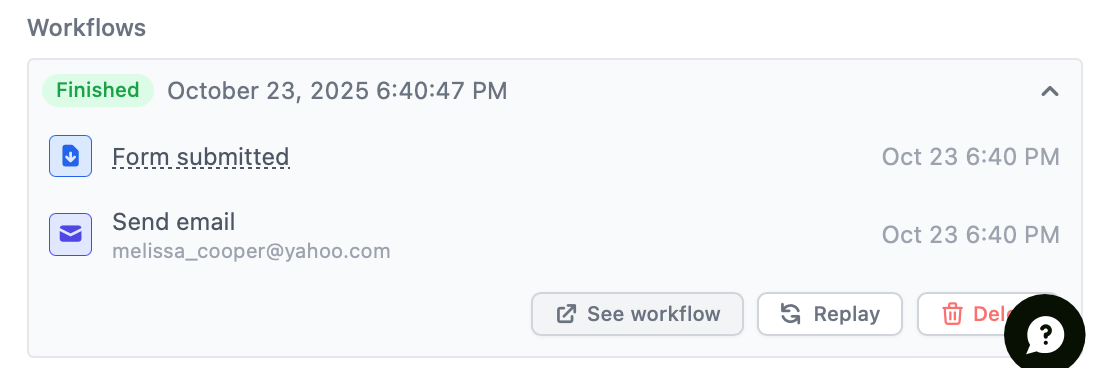
 You can also [view an individual form submission](https://www.fillout.com/help/view-responses#view-individual-submissions) and scroll down to see the workflow run history.
 You can have up to 5 workflows per form for unverified organizations, and up to 20 workflows for verified organizations. To request verification, submit this [form](https://main.fillout.com/verify-your-fillout-account).