> ## Documentation Index
> Fetch the complete documentation index at: https://fillout-005a867b-dependabot-npm-and-yarn-socket-io-parser-4.mintlify.site/llms.txt
> Use this file to discover all available pages before exploring further.
# Connect your form to Slack
> Get a Slack notification whenever your form is submitted, with each question automatically formatted or with a custom message of your choosing.
export const SupportBanner = () => {
const titleId = React.useId();
return ;
};
## What is Slack?
[**Slack**](https://slack.com/) is a communication platform designed for teams to collaborate and work together more effectively. It offers messaging, file sharing, and other features to help teams stay connected and productive.
## Video tutorial
## How it works
Open your form in Fillout and head to the `Integrate` tab, then click `Slack`.
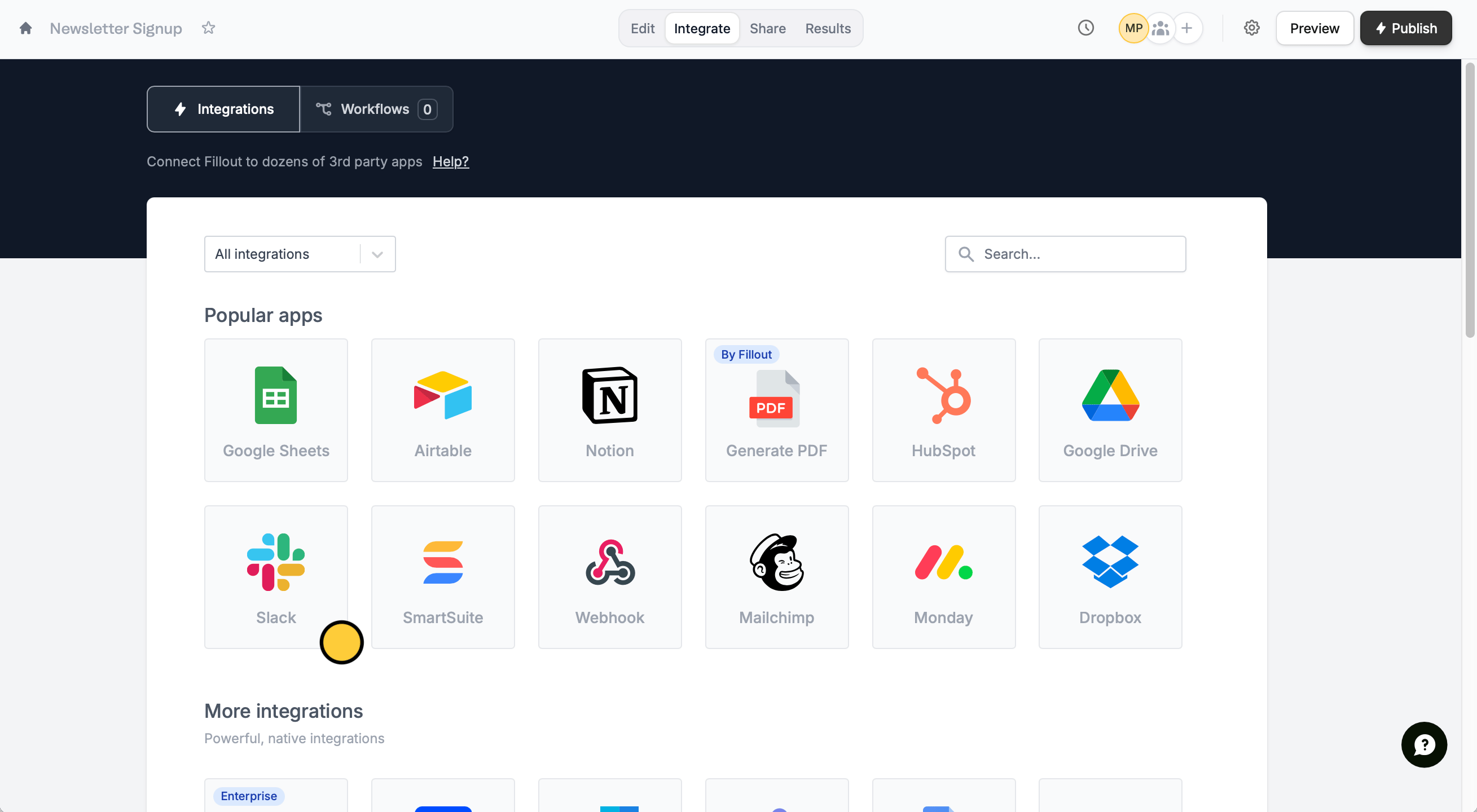 Label your Slack integration, then `Connect to Slack`. The label you choose won't matter. It’s just for identifying which Slack workspace you connected to in case you reuse the connection on other forms.
Select the **Channel** from your workspace you want to send notifications to, e.g. #random or #general.
Label your Slack integration, then `Connect to Slack`. The label you choose won't matter. It’s just for identifying which Slack workspace you connected to in case you reuse the connection on other forms.
Select the **Channel** from your workspace you want to send notifications to, e.g. #random or #general.
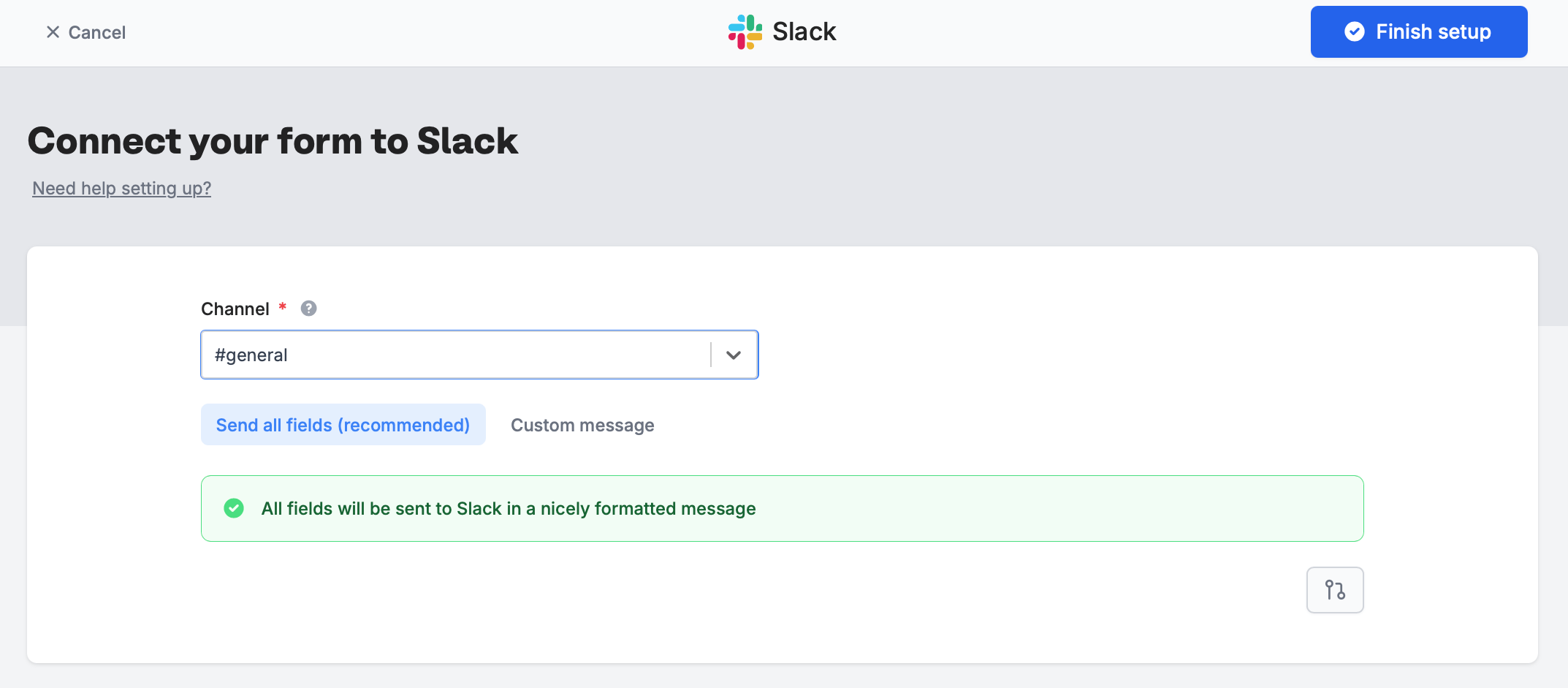 `Finish setup` That's it! You will now receive notifications on the Slack channel whenever a respondent completes your form.
Remember to `Publish` your form to make the changes reflect.
## Message formatting
### Send all fields to Slack (recommended)
The default option, `Send all fields`, sends form responses in a nicely formatted message in your channel. You’ll see responses like this in Slack:
`Finish setup` That's it! You will now receive notifications on the Slack channel whenever a respondent completes your form.
Remember to `Publish` your form to make the changes reflect.
## Message formatting
### Send all fields to Slack (recommended)
The default option, `Send all fields`, sends form responses in a nicely formatted message in your channel. You’ll see responses like this in Slack:
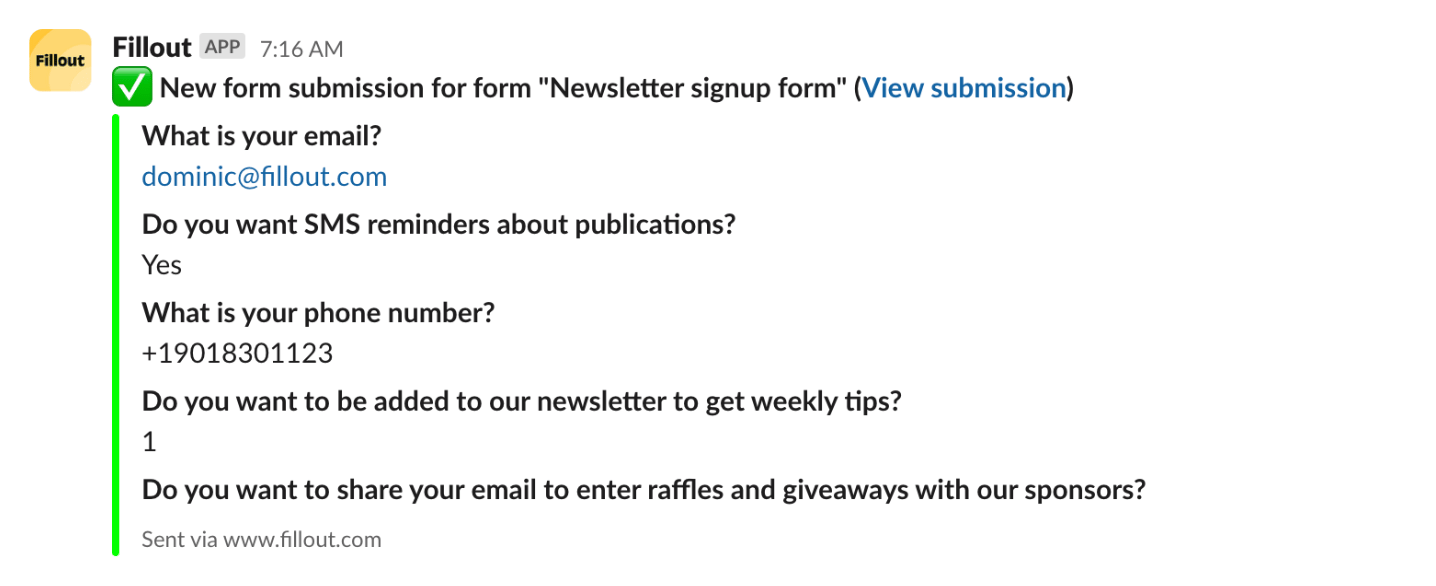 We recommend this option, since Fillout handles ordering the questions properly and you won’t need to make changes if you add more questions to your form.
### Send a custom message to Slack
Choose the other option, `Custom message`, if you want to specify the exact information that gets sent to Slack. Click or type **@** to reference questions or fields in your form.
We recommend this option, since Fillout handles ordering the questions properly and you won’t need to make changes if you add more questions to your form.
### Send a custom message to Slack
Choose the other option, `Custom message`, if you want to specify the exact information that gets sent to Slack. Click or type **@** to reference questions or fields in your form.
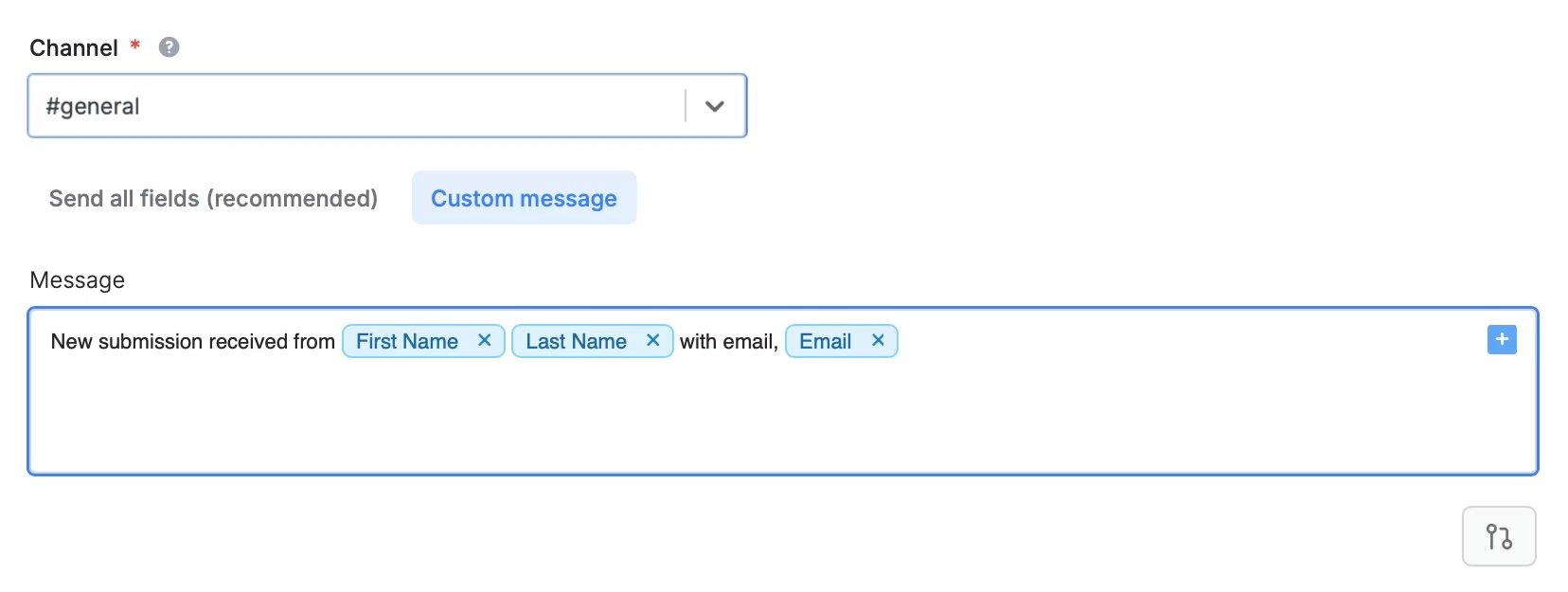 You can format Slack messages using [Slack’s formatting markdown language](https://slack.com/help/articles/202288908-Format-your-messages).
## Specify a condition
You can run your integration only when a specific condition is met. Check out this [guide](/conditional-integration).
## Other similar integrations
Get response summaries on Teams.
Get response summaries on Discord.
Send to automation tools or any endpoint.
You can format Slack messages using [Slack’s formatting markdown language](https://slack.com/help/articles/202288908-Format-your-messages).
## Specify a condition
You can run your integration only when a specific condition is met. Check out this [guide](/conditional-integration).
## Other similar integrations
Get response summaries on Teams.
Get response summaries on Discord.
Send to automation tools or any endpoint.