> ## Documentation Index
> Fetch the complete documentation index at: https://fillout-005a867b-dependabot-npm-and-yarn-socket-io-parser-4.mintlify.site/llms.txt
> Use this file to discover all available pages before exploring further.
# Page types
> Add different types of pages on your Fillout form or use a single page for all your questions.
export const SupportBanner = () => {
const titleId = React.useId();
return ;
};
## How to add a page
By default, new forms in Fillout have a single **Form** page that comes with an **Ending** page. You can see both at the bottom of the form.
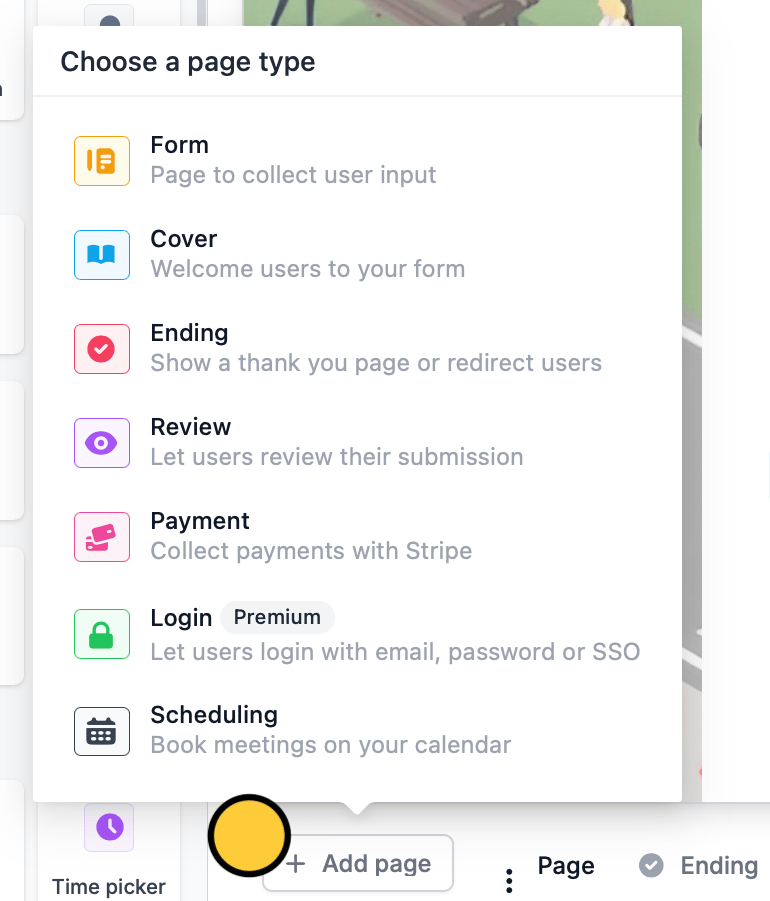
To create **multi-page forms**, click `+ Add page` and select your [page type](/page-types).
 ## List of page types
Ask any type of question, collect signatures, display PDFs, and more.
Welcome users to your form and add a logo to match your brand.
Show a thank you page, redirect, or allow repeat responses.
Let respondents review their answers before submitting your form.
Make a page where the products and price automatically update.
Require respondents to verify their email, enter a password, or use SSO.
Allow respondents to book a time slot on your calendar.
## Copy and paste a page
Click next to the name of the page followed by `Copy`. Then, paste anywhere using `⌘ + V` or `Ctrl + V`.
## List of page types
Ask any type of question, collect signatures, display PDFs, and more.
Welcome users to your form and add a logo to match your brand.
Show a thank you page, redirect, or allow repeat responses.
Let respondents review their answers before submitting your form.
Make a page where the products and price automatically update.
Require respondents to verify their email, enter a password, or use SSO.
Allow respondents to book a time slot on your calendar.
## Copy and paste a page
Click next to the name of the page followed by `Copy`. Then, paste anywhere using `⌘ + V` or `Ctrl + V`.
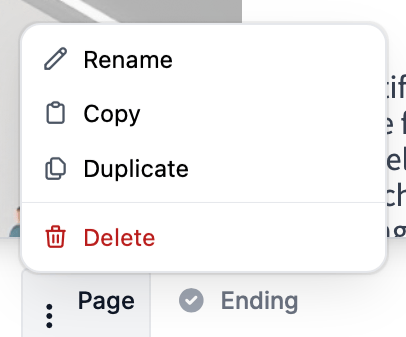 Alternatively, you may also click `Duplicate`.
You can copy an entire page from one form you're working on to another form.
## Change the order of pages
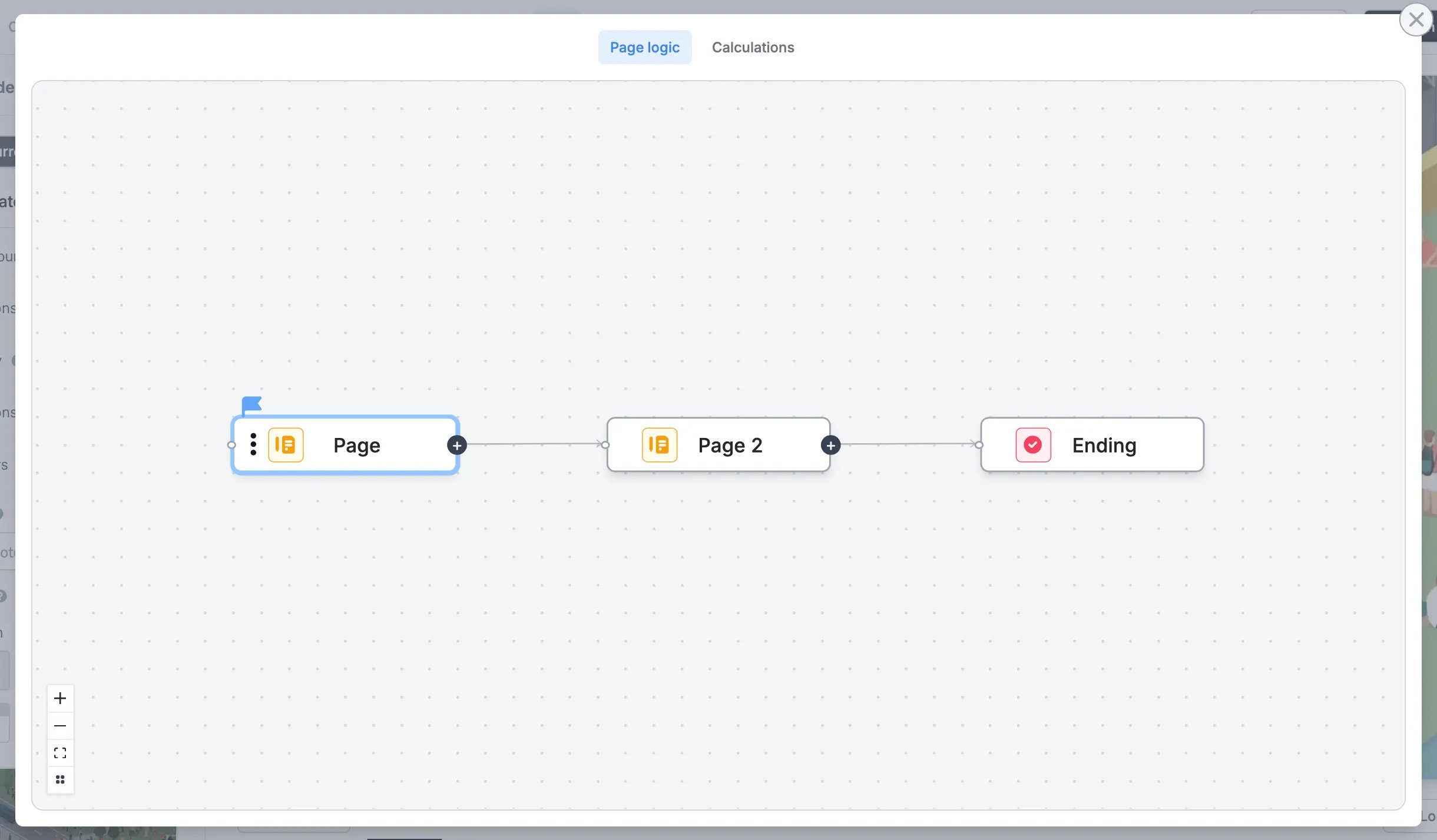
You can arrange the order pages are shown to respondents through [**page logic**](/page-logic) in the lower right corner.
Alternatively, you may also click `Duplicate`.
You can copy an entire page from one form you're working on to another form.
## Change the order of pages
You can arrange the order pages are shown to respondents through [**page logic**](/page-logic) in the lower right corner.
 ## Related articles
Change the position of headings, questions, and background image.
Display questions side by side, rather than stacked vertically.
Hide or show pages or custom endings based on respondent input.
## Related articles
Change the position of headings, questions, and background image.
Display questions side by side, rather than stacked vertically.
Hide or show pages or custom endings based on respondent input.